PDF files are everywhere.
Businesses use them for invoices, contracts, reports and proposals. Students download research papers and study material as PDFs. Professionals receive forms, statements, presentations and documents that need to be reviewed, edited or converted.
The problem starts when you need to do more than simply open the file.
You may need to edit a sentence, extract a table, convert a PDF to Word, summarize a long report, recognize text from a scanned page, translate a document or find one important piece of information hidden inside dozens of pages.
Traditionally, every task required a separate PDF tool.
That is changing.
Modern AI PDF tools combine traditional document utilities with artificial intelligence that can help users understand, search, summarize and extract information from documents.
Instead of treating a PDF as a static file, AI-powered PDF software can turn it into information you can work with.
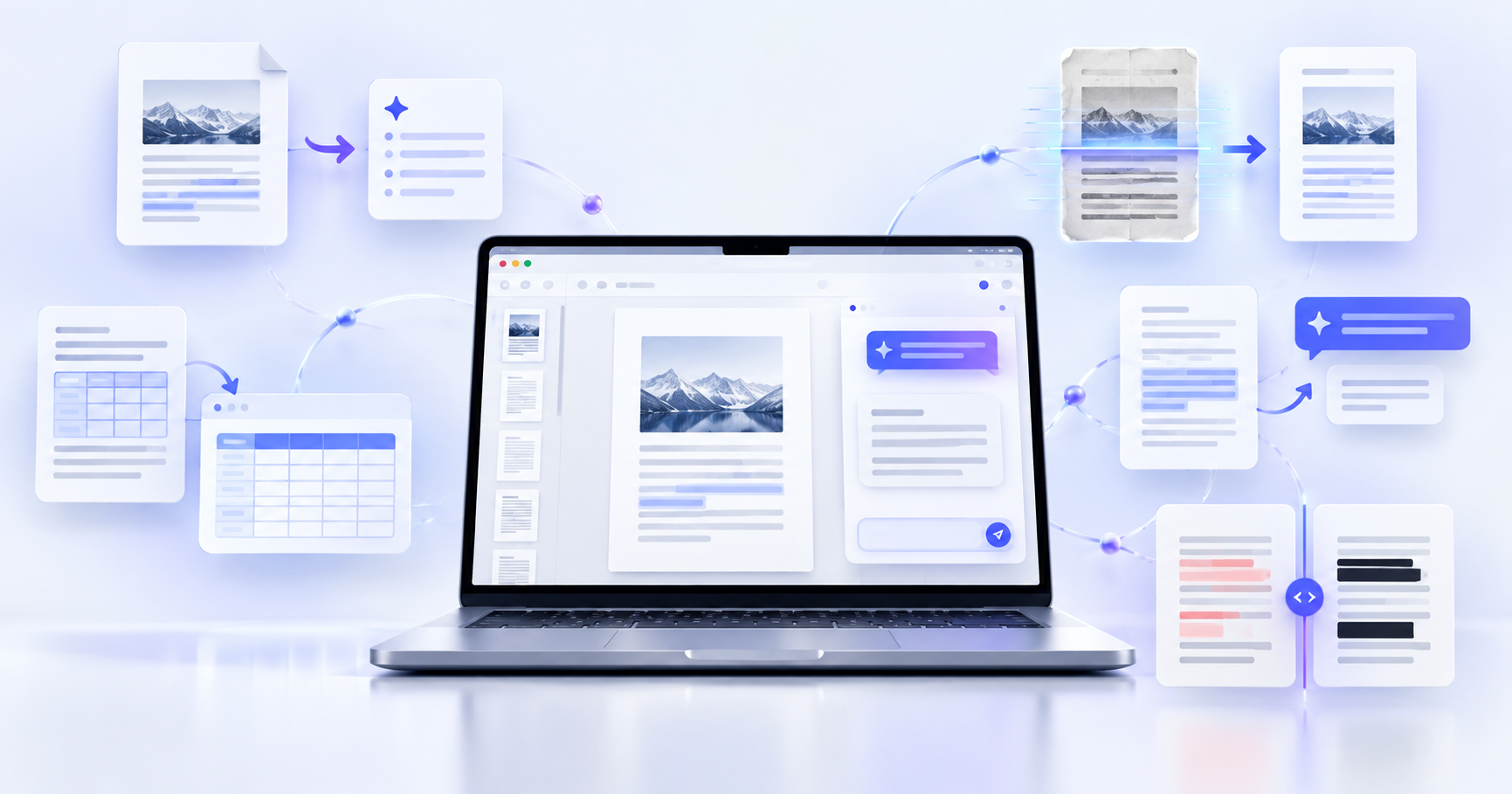
PDF Workspace brings standard PDF tools and AI-powered document features together so users can edit, convert, organize and understand PDF files from one workspace.
What Are AI PDF Tools?
AI PDF tools are document applications that combine standard PDF processing with artificial intelligence.
A traditional PDF tool usually focuses on the file itself.
It may help you:
Edit a PDF.
Merge multiple documents.
Split pages.
Convert PDF to Word.
Convert PDF to Excel.
Compress a large PDF.
Protect a file with a password.
AI-powered PDF tools go one step further.
They can help understand the information inside the document.
For example, instead of manually reading a long business report, you could ask:
What are the major findings in this document?
Which dates are important?
What payment terms are mentioned in this contract?
Summarize this report in five key points.
Extract the important financial information.
This creates an important distinction.
Traditional tools help you modify the document.
AI PDF tools can also help you understand and use its content.
Why AI PDF Tools Are Becoming More Useful
The amount of digital information people work with continues to grow.
A single employee may receive reports, contracts, invoices, research documents and presentations every day.
The challenge is no longer only storing documents.
The challenge is finding useful information inside them quickly.
Imagine receiving a 70-page report.
You may only need to know:
What changed compared with last quarter?
What are the main risks?
Which numbers matter?
What actions are recommended?
Reading the entire report may take significant time.
An AI PDF assistant can help locate and summarize relevant information before you decide which sections require deeper review.
This makes AI PDF tools useful for students, researchers, marketers, finance professionals, operations teams, legal professionals and businesses dealing with document-heavy workflows.
Chat With PDF Using AI
One of the biggest changes in PDF software is the ability to chat with a PDF.
Traditional document search works well when you know the exact keyword you need.
But sometimes the document uses different terminology.
For example, you may search for:
“cancel contract”
while the agreement actually uses terms such as:
termination, cessation, material breach or termination rights.
A conversational PDF tool allows you to ask a natural-language question instead.
For example:
Under what conditions can this agreement be terminated?
The system can analyze the document and help locate information related to your question.
This approach can be useful for:
Research papers.
Business reports.
Contracts.
Policies.
Manuals.
Proposals.
Financial documents.
Technical documentation.
With Ask PDF, users can interact with a document using natural-language questions instead of manually searching page by page.
AI should still be treated as an assistant. Important financial, legal, academic or business information should always be checked against the original source document.
Summarize Long PDFs With AI
Long documents are often difficult to review when time is limited.
An AI PDF summarizer can help convert a large document into a shorter overview.
For example, a 60-page industry report may contain:
Market trends.
Statistics.
Research findings.
Recommendations.
Future projections.
Risks.
Instead of beginning with page one and reading everything, you can first summarize the document to understand what it contains.
A useful workflow is:
Summarize → Identify important sections → Review the original PDF
This helps users focus their attention where it matters most.
With an AI PDF Summarizer, long documents can be reduced into more manageable information while maintaining access to the original file for verification.
When Is a PDF Summarizer Useful?
PDF summarization can be particularly useful for:
Research papers.
Business reports.
Academic material.
Market research.
Whitepapers.
Company policies.
Meeting documents.
Case studies.
Long articles.
The purpose is not necessarily to avoid reading the original document.
The purpose is to understand it faster.
Use OCR to Make Scanned PDFs Searchable
Not every PDF contains actual digital text.
Some documents are created by scanning physical papers.
Invoices, certificates, receipts, forms and older records may look like normal PDFs but are technically images.
If you cannot select or search the text, the document may need OCR.
OCR stands for Optical Character Recognition.
It identifies letters and numbers visible inside an image and converts them into machine-readable text.
Once OCR has processed a document, it becomes much easier to:
Search the PDF.
Copy text.
Extract information.
Convert it.
Analyze it.
Summarize it.
A scanned invoice, for example, could first be processed using OCR before extracting values into a spreadsheet.
You can use the OCR PDF tool to make scanned documents easier to search and process.
Edit PDFs Online Without Recreating the Document
Sometimes a PDF does not need to be converted.
It only needs a small correction.
Maybe the date is wrong.
A company address has changed.
A paragraph needs updating.
A new image needs to be added.
A small typo needs fixing before the document is shared.
Converting the entire PDF to another format for one small change can create unnecessary work.
An online PDF editor allows users to make changes directly to the existing file.
With the PDF Editor, users can work with document content without rebuilding the entire file from scratch.
For scanned PDFs, OCR may be needed before editable text can be recognized.
Convert PDF to Word for More Extensive Editing
Direct PDF editing is useful for small changes.
But if you need to rewrite several pages or restructure the entire document, converting it to Word can be easier.
A PDF to Word converter turns a PDF into an editable DOCX document.
This can be useful for:
Business reports.
Contracts.
Resumes.
Proposals.
Templates.
Academic documents.
Policies.
The difference is simple.
Use a PDF editor when you want to keep working with the PDF itself.
Use a PDF to Word converter when you need deeper editing in a word-processing environment.
Convert PDF Tables to Excel
Tables can be one of the most frustrating elements to extract from a PDF.
Copying a financial table and pasting it into Excel often causes:
Broken rows.
Incorrect columns.
Missing values.
Formatting problems.
Extra spaces.
A PDF to Excel converter can help transfer structured data from a PDF into spreadsheet format.
This is useful for:
Financial statements.
Invoices.
Bank statements.
Price lists.
Inventory reports.
Sales reports.
Research datasets.
Business reports.
Once the information is in Excel, it becomes easier to sort, filter, calculate and analyze.
Use PDF to Excel when your primary goal is turning PDF tables into editable spreadsheet data.
Extract Specific Data From PDF Documents
Sometimes the information you need is not contained inside one clean table.
It may be spread throughout several pages.
Imagine processing hundreds of invoices.
You may need to capture:
Invoice number.
Supplier name.
Date.
Subtotal.
Tax.
Final amount.
Payment terms.
Manually extracting every field would take considerable time.
This is where AI PDF data extraction becomes useful.
Instead of copying information field by field, data extraction tools can help identify specific values within documents and organize them into usable information.
PDF Data Extraction can be useful for document-heavy workflows in finance, operations, administration, procurement and research.
Merge Multiple PDF Files
Not every document task requires artificial intelligence.
Sometimes you simply need to combine several files.
A Merge PDF tool can combine multiple documents into one PDF.
For example, you might need to combine:
Monthly invoices.
Application documents.
Research chapters.
Scanned pages.
Legal attachments.
Project reports.
Presentations.
Using Merge PDF, separate files can be organized into a single document.
This can also become part of a larger AI workflow.
For example:
OCR documents → Merge PDFs → Summarize the combined document
Split Large PDF Documents
Sometimes the opposite problem occurs.
You have one large PDF but only need a few pages.
A Split PDF tool helps separate pages or sections into individual documents.
It can be useful when:
Sharing only one chapter.
Extracting specific pages.
Separating invoices.
Breaking a large report into smaller files.
Creating individual documents from a combined PDF.
You can use Split PDF when you only need selected sections from a larger document.
Translate PDF Documents With AI
Global teams regularly work with documents written in different languages.
Copying paragraphs into a separate translation tool can quickly become inconvenient, especially with longer files.
An AI PDF translator can help simplify multilingual document workflows.
Common use cases include:
International contracts.
Academic papers.
Business reports.
Product documentation.
Customer documents.
Educational material.
Research reports.
With Translate PDF, documents can be processed without manually moving every paragraph into another application.
For important legal, medical, financial or compliance-related content, translations should still be professionally reviewed.
Compare Two PDF Documents
Version control can become difficult when two documents look almost identical.
Consider files named:
Contract_Final.pdf
Contract_Final_v2.pdf
Contract_Final_Updated.pdf
Finding the actual difference manually can be frustrating.
An AI-assisted PDF comparison tool can help identify what changed between two versions.
This can be useful for:
Contracts.
Policies.
Financial reports.
Academic drafts.
Client proposals.
Technical documentation.
Business agreements.
Compare PDFs can help users review document differences without checking every page manually.
Redact Sensitive Information From PDFs
Documents often contain information that should not be publicly shared.
This could include:
Personal information.
Phone numbers.
Addresses.
Account information.
Employee details.
Confidential business information.
Customer data.
Sensitive identifiers.
A proper PDF redaction tool is designed to remove sensitive information before the document is distributed.
This is different from simply placing a shape over visible text.
A professional redaction workflow should ensure sensitive content cannot easily be recovered.
Smart Redact can help simplify the process of identifying and removing information that should not be shared.
Always review the final document before sending sensitive files externally.
Compress Large PDF Files
Large PDFs can be difficult to send by email or upload to websites.
This is especially common with:
Image-heavy reports.
Scanned documents.
Presentations.
Portfolios.
Large forms.
A PDF compressor reduces the overall file size while attempting to preserve acceptable document quality.
Use Compress PDF when you need a smaller file for sharing, uploading or storage.
Protect PDF Documents With a Password
Some documents should only be accessible to specific people.
A Protect PDF tool can add password protection before the file is shared.
This may be helpful for:
Internal reports.
Confidential documents.
Financial information.
Employee files.
Client documents.
Private records.
You can use Protect PDF to add another access layer to a PDF.
For highly sensitive documents, password protection should still be used alongside appropriate organizational security practices.
From Individual PDF Tools to AI-Powered Workflows
This is where document software is becoming more interesting.
Traditional PDF websites usually follow this process:
Select a tool → Upload PDF → Perform action → Download → Open another tool → Upload again
That works when the task is simple.
But real business workflows are often more complicated.
Imagine receiving 30 scanned invoices.
The actual requirement may be:
Read the invoices, recognize the text, extract the totals and prepare the information for spreadsheet analysis.
That could involve several operations:
OCR.
Data extraction.
Conversion.
Organization.
Review.
The user does not necessarily care which individual tool performs each step.
They care about the final result.
This is why AI-powered and agentic document workflows are becoming increasingly useful.
Instead of thinking:
Which PDF button should I click?
The user can begin thinking:
What do I want to accomplish with these documents?
What Is an Agentic AI PDF Workflow?
An agentic document workflow goes beyond executing one isolated action.
The user describes a broader goal.
The system can then use relevant capabilities to help complete that workflow.
Compare these two instructions.
Traditional PDF request:
Convert this PDF to Excel.
More advanced workflow:
Review these monthly reports, extract the important financial tables and organize the information for analysis.
The second request may require several document-processing steps.
This represents an important evolution in PDF software.
Traditional PDF applications are built around tools.
AI-powered PDF platforms are increasingly being built around outcomes.
AI PDF Tools for Students
Students regularly work with:
Research papers.
Lecture notes.
Academic reports.
Textbooks.
Case studies.
Study material.
Instead of manually searching a long research paper, a student can use an AI PDF assistant to explore specific questions.
For example:
What methodology does this research use?
What are the main findings?
What limitations did the authors mention?
Summarize this paper for revision.
OCR can also help with scanned academic material.
Translation can support foreign-language research.
The most important rule is to verify critical academic information against the original source.
AI should support research, not replace source checking.
AI PDF Tools for Businesses
Businesses process large numbers of documents every day.
Different teams have different requirements.
Finance teams may need invoice extraction and PDF-to-Excel conversion.
HR teams may need editing, redaction and file organization.
Sales teams may work with proposals and contracts.
Marketing teams may review reports and research documents.
Operations teams may process forms and supplier information.
Management may need summaries of lengthy reports.
An all-in-one PDF workspace can reduce the need to move between several unrelated applications.
This becomes particularly valuable when several document tasks are part of the same workflow.
AI PDF Tools for Finance Teams
Finance departments often receive information in PDF format even though the information ultimately needs to be analyzed in spreadsheets.
Examples include:
Invoices.
Statements.
Financial reports.
Purchase documents.
Expense records.
A possible workflow is:
OCR → Extract Data → PDF to Excel → Review → Analyze
Using multiple document capabilities together can reduce repetitive copying and make information easier to work with.
Human review remains important, particularly when financial information affects reporting or decision-making.
AI PDF Tools for Legal and Compliance Work
Legal teams work with large quantities of documents where small details matter.
Contracts may need to be:
Searched.
Compared.
Summarized.
Redacted.
Reviewed.
Organized.
An AI PDF assistant can help locate relevant sections.
PDF comparison can help identify differences between versions.
Smart redaction can support document sharing workflows.
However, AI output should never be treated as a substitute for qualified legal or compliance review.
Its value is in reducing repetitive work and helping professionals find relevant information faster.
How to Choose the Right AI PDF Tool
Do not choose a PDF platform only because it has a long feature list.
Start with your actual workflow.
Ask yourself:
Can it work with scanned documents?
Can I chat with a PDF?
Can it summarize long documents?
Can it convert PDF to Word and Excel?
Can it extract specific information?
Can I edit the original PDF?
Can I compare document versions?
Can I redact confidential information?
Can I combine several PDF operations?
Is the interface easy enough for everyday use?
Also consider document privacy and how uploaded files are handled, particularly when working with business or personal information.
AI PDF Tools Are Changing What a PDF Editor Can Do
For years, PDF software answered a relatively simple question:
How can I change this document?
AI introduces new questions.
What does this document say?
Where is the information I need?
Can you summarize this report?
What changed between these two files?
Can this scanned document become searchable?
Can this table become spreadsheet data?
Can sensitive information be removed before sharing?
Can several document tasks become one workflow?
That is why the category is moving beyond basic PDF editing.
Documents are becoming searchable, conversational and more actionable.
Does AI Replace Traditional PDF Tools?
No.
Standard tools such as Merge PDF, Split PDF, Compress PDF and PDF to Word still solve important document problems.
AI adds another layer.
Traditional PDF tools handle file operations.
AI helps interpret information.
Advanced workflows can connect both.
The result is not simply an AI PDF editor.
It is a more complete PDF workspace.
Frequently Asked Questions
What are AI PDF tools?
AI PDF tools combine traditional PDF functions with artificial intelligence. They can help users edit, convert, summarize, search, translate and extract information from documents.
Can AI summarize a PDF?
Yes. An AI PDF summarizer can generate a shorter overview of a document. Important information should still be verified against the original PDF.
Can I chat with a PDF?
Yes. Chat-with-PDF tools allow users to ask natural-language questions about uploaded documents.
Can AI read scanned PDFs?
A scanned PDF may first require OCR. OCR converts text visible in scanned images into machine-readable text that can then be searched or analyzed.
Can PDF tables be converted to Excel?
Yes. PDF-to-Excel tools can convert structured table information into spreadsheet format. Scanned tables may require OCR first.
What is OCR in PDF?
OCR stands for Optical Character Recognition. It converts text in scanned pages or images into searchable and machine-readable text.
Can AI compare two PDF documents?
AI-assisted document comparison tools can help identify differences between two versions of a PDF.
Can I translate a PDF using AI?
Yes. AI-powered PDF translation tools can help process documents written in different languages. Important translations should still be reviewed where accuracy is critical.
Are AI PDF tools useful for businesses?
Yes. They can help businesses summarize reports, process invoices, extract data, compare documents, convert files and manage repetitive PDF workflows.
What is an agentic PDF workflow?
An agentic PDF workflow begins with an objective rather than a single tool. The system can use several supported document operations to help complete a multi-step task.
The Future of PDF Work Is About Outcomes
PDF software is becoming more capable, but the most important change is not simply the number of available tools.
It is reducing the distance between a document and the result you actually need.
Sometimes the requirement is simple:
Merge these PDFs.
But increasingly, the requirement looks like:
Understand this report.
Extract these figures.
Compare these agreements.
Turn these invoices into usable data.
Translate this document.
Remove sensitive information before sharing.
That requires more than a basic PDF reader.
An AI-powered workspace combines document editing, conversion and organization with AI-driven understanding.
PDF Workspace brings these capabilities together so users can work with documents from one place.
As AI document software evolves, the most useful question may no longer be:
“Which PDF tool do I need?”
It may become:
“What do I want to accomplish with this document?”